The complete operational loop.
Whether you are managing a team or invited as a member to execute work, here is exactly how RollupHQ keeps everyone accountable.
Find your place in the structure.
Teams are organized clearly. You might be the one creating the Organization, or you might just be an invited member joining a specific Team.
If you are a member, you skip the setup. You just log in and immediately see the Workspaces and Projects you are meant to contribute to.
- Organization
- Workspace
- Team
Projects are the hub.
A Project holds everything together. It has a clear deadline and is managed by a Workspace Admin.
Inside a project, you find Tasks (the work), Discussions (team chat attached to the project), and Libraries (shared files). This means your team never has to dig through WhatsApp or email threads to find the latest version of a document.
Tasks: Do the work. Prove it.
Inside a project, Tasks go through a strict loop. We don't just let you check a box; we require evidence.
-
1
Execute
You do the assigned work.
-
2
Submit Evidence
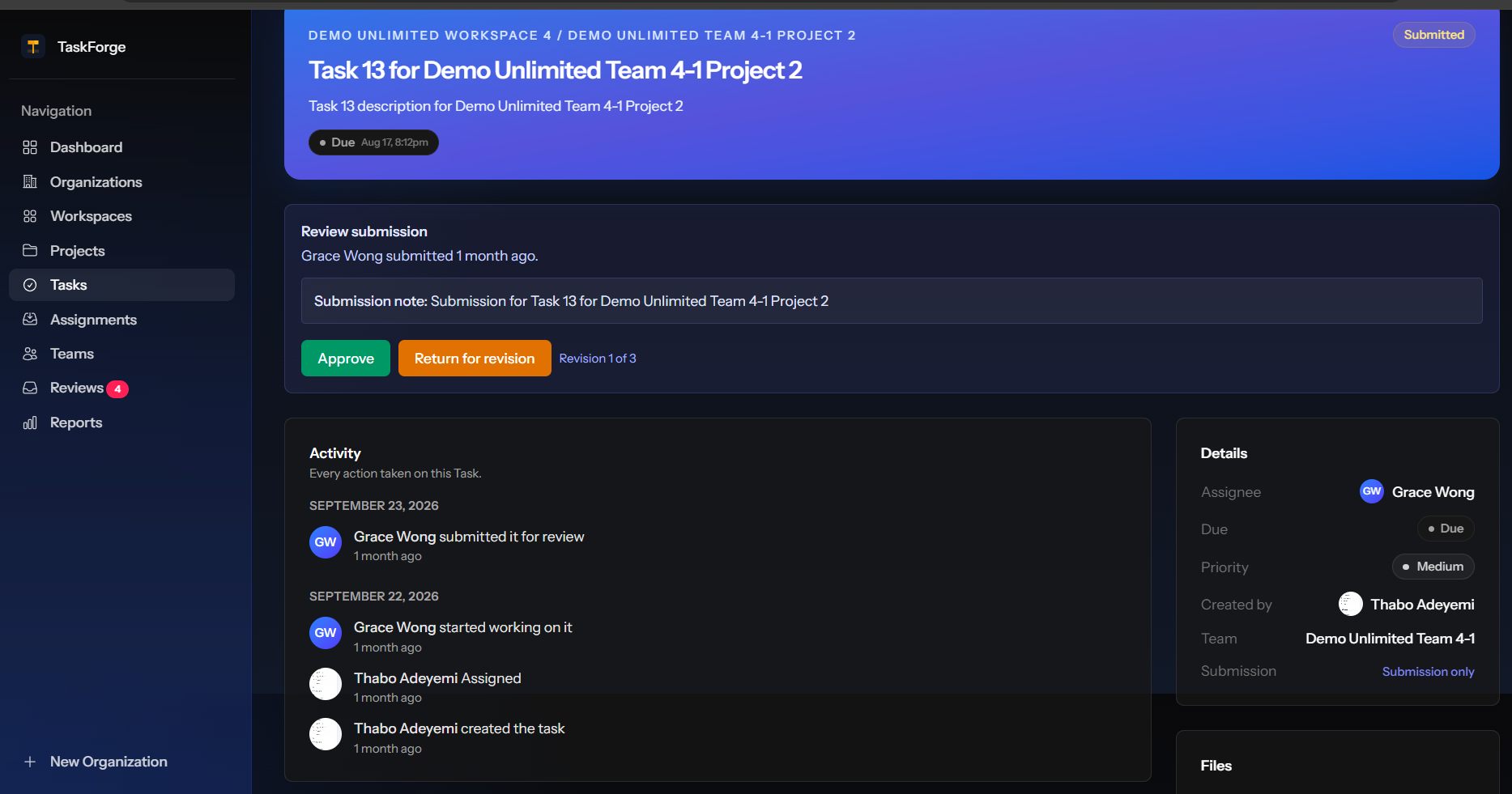
When done, click Submit. You upload the file, the link, or a note proving the work is complete.
-
3
Review & Approve
Your team leader reviews it. If it's good, they approve it. If it needs changes, they return it with feedback.
The 3-Strike Rule
If a task is returned 3 times without approval, the Workspace Admin is automatically brought in to resolve it.
Need something quickly? Use Assignments.
Not all work needs a full review loop. If you just need a file or a quick update (e.g., "Send me the latest logo file"), you create an Assignment.
Assignments sit outside of Projects. They don't require approval—they just require a direct response from the person you target.
What if you get stuck?
You shouldn't have to chase people to get unblocked. RollupHQ automatically escalates blockers so you can keep moving.
Blocker Reported
Hour 0You log a blocker. The Team Leader is notified immediately. If you choose, the rest of the team can be notified too.
Escalation to Leader
Hour 24Still unresolved? The Team Leader gets a second, urgent notification.
Admin Intervention
Hour 72If the Leader can't resolve it after 48 more hours, the Workspace Admin is brought in.